
< HOME
Site
Header
Mobile
Top
Sidebar
Bottom
Footer
Blog
Post

Layout
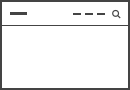
Select the layout for the logo, navbar and header positions. Some layouts can split or push items of a position which are shown as ellipsis.
Max Width
Set the maximum header width.
Navbar
Stick the navbar at the top of the viewport while scrolling or only when scrolling up.
Navbar Style
Select the navbar style.
Transparent Background
Make the header transparent even when it's sticky.
Dropdown
Align dropdowns to their menu item or the navbar. Optionally, show them in a full-width section called dropbar, display an icon to indicate dropdowns and let text items open by click and not hover.
Dialog Layout
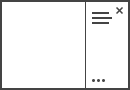
Select the layout for the dialog position. Items which can be pushed are shown as ellipsis.
Dialog Push Items
Set the number of items after which the following items are pushed to the bottom.
Dialog Toggle
Offcanvas Mode
Search
Select the position that will display the search.
Search Style
Select the search style.
Social Icons
Select the position that will display the social icons.